 To generate a Package Revenue Report:
Open the Package Revenue Report screen:
To reach the Reports Menu:
The Reports Menu can be accessed by clicking the Reports icon on the Action Bar:

Note: In the NEW look for Skyware, the Action Bar appears slightly different but retains the Room Chart button.

OR
Click Reports from the Status section of the Full Menu.
Click the icon on the left for the Full menu.
 OR
OR 
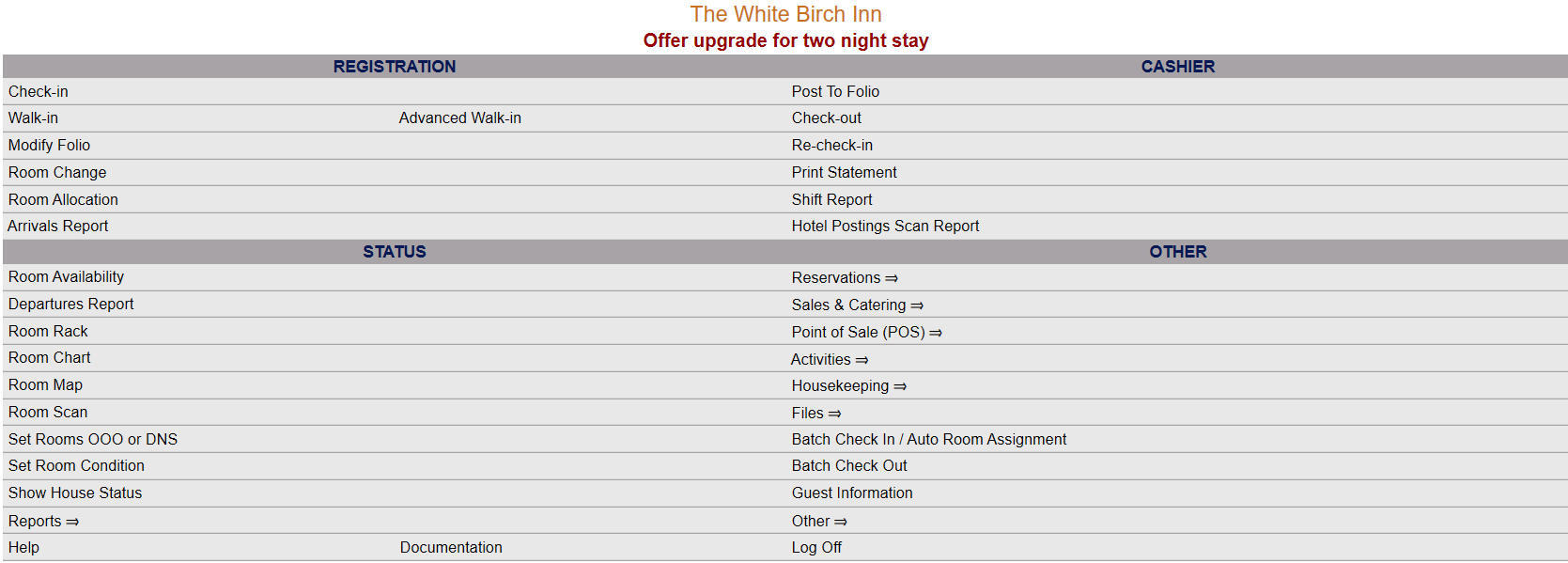
This will display the Full menu in a tabular form, with four sections, Registration, Status, Cashier and Other.
 OR
OR 
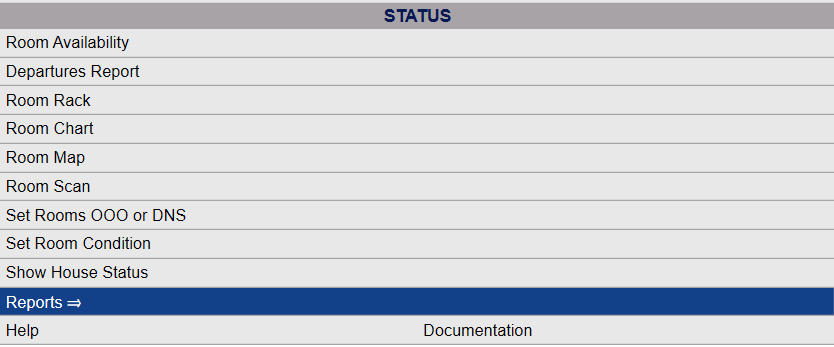
From the Status Section, select Reports.
 OR
OR 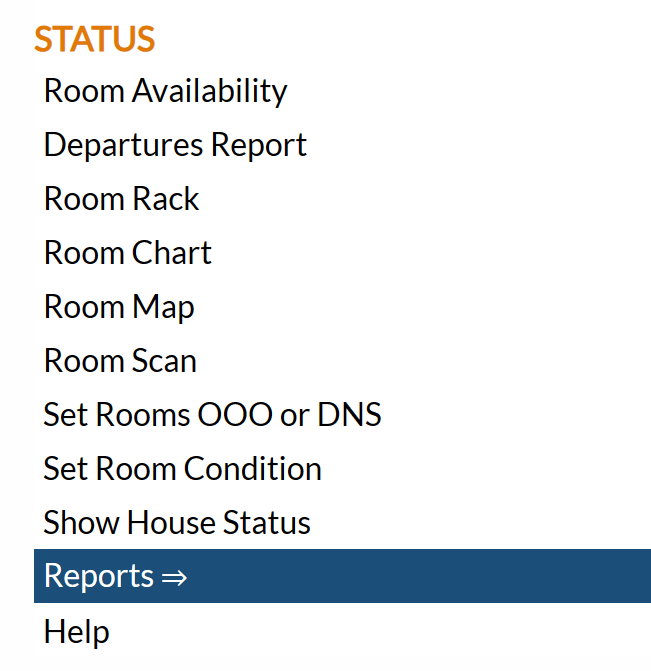
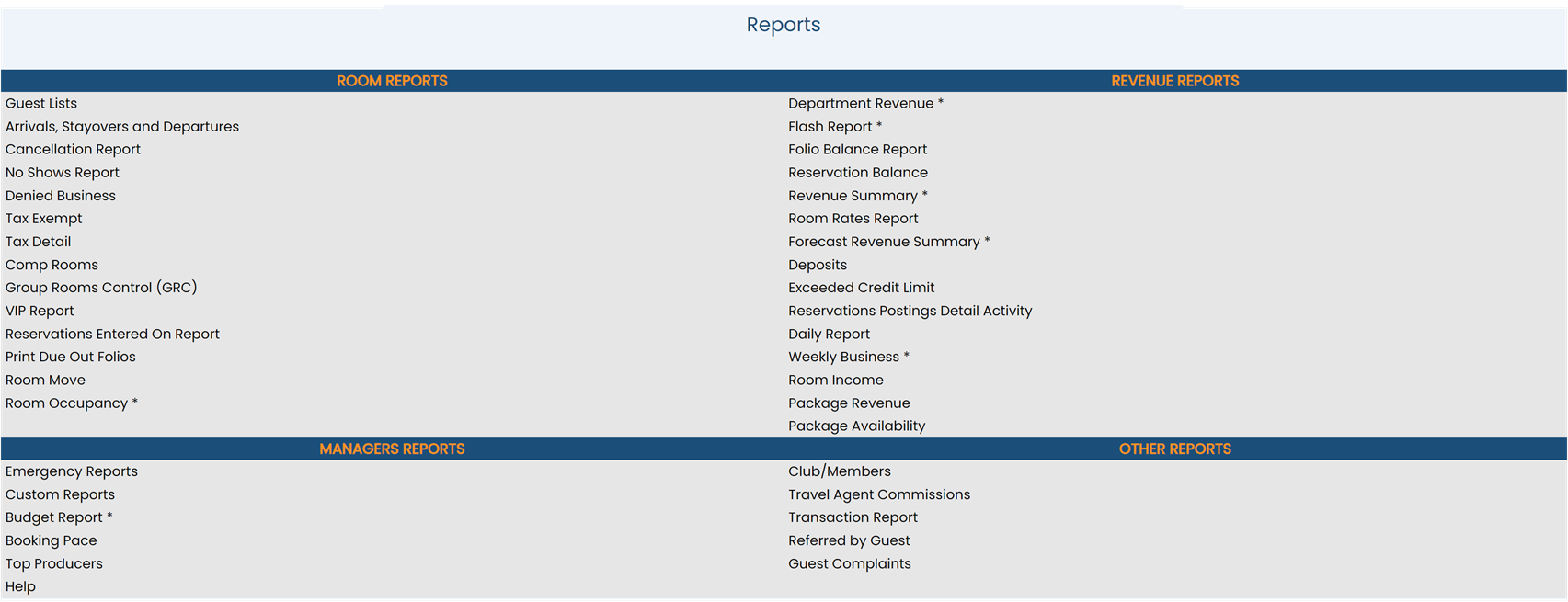
The Reports screen is divided into four sections, Room Reports, Revenue Reports, Managers Reports and Other Reports.
 OR
OR 
The Package Revenue command is in the Revenue Reports section.
 OR
OR 
When selected, the Package Revenue Report screen will open.

Report Date: You will need to specify the Date Range for the Report.
From: Click within the date field to expand the calendar and choose the desired date. By default, today's date is selected.
To: Click within the date field to expand the calendar and choose the desired date. By default, the date one month hence is selected.
Note: Using the default Report Date range will generate a report for one month. changing the "From" date will AUTOMATICALLY change the "To" date the same amount, to maintain the same number of days between the From and To selections. If you wish to show fewer days on the report you must alter the "To" field. If the "To " field is altered, subsequently changing the "From" date will again alter the "To" date to maintain the number of days between the two.
Report Options: Select the options to generate the Report. There are multiple sets of information to select options from.
Using the radial buttons, choose ONE type of Report to have generated, Summary, Detail or Detail with contact info. By default, Summary is selected.
Using the radial button options, select ONE option to show on the report. The report can be filtered by All, Packages only, or Amenities only. By default, All is selected.
The Report may be filtered by a single Group if desired. If so, the Group ID must be entered into the "Filter by Group ID" field. If you do not know the specific ID you may search for it by clicking on the ellipsis points button to the right of the field. This will open a searchable list of Group Master IDs in a new window.

Clicking on any of the listed Groups will close the window and automatically enter the selected ID into the field.
Separate report for each day?: If you wish to generate the report for more than one day, this check box may be selected to allow the report to be produced with the days separated individually, rather than as one long report. By default, the check box is not checked.
When finished, click the button Show Report.
Note: Package revenue will be shown by Package if the Summary view is selected, and for each guest on the Detail view. If the Detail with contact info option is selected, this will be listed alongside the guest name.
When generated, the report shows the package name, the number of this package sold, the total revenue for the package then revenue divided into categories, with room revenue and other revenue, followed by the customized food, beverage, off site revenue and on site revenue categories.
Summary View:

Detail View:

Detail with contact info View:

Note: If the "Separate report for each day?" check box is not selected, the report is a single page showing ALL packages sold over the selected date range. If it IS selected, the report generated will show individual daily reports for the selected date range as a scrollable list.
By default, the report is generated in PDF form and opens in a separate browser window. From there you can select to save or print the report, among other options. You can, instead, check the Generate report to excel checkbox to generate the report in HTML for downloading to Excel instead of PDF.
NOTE: The generated report appears as a pop-up window through your browser. If your browser is set to block pop-ups, you may receive a warning banner at the top of the browser. Click this banner and select to allow pop-ups so that you can view the report.